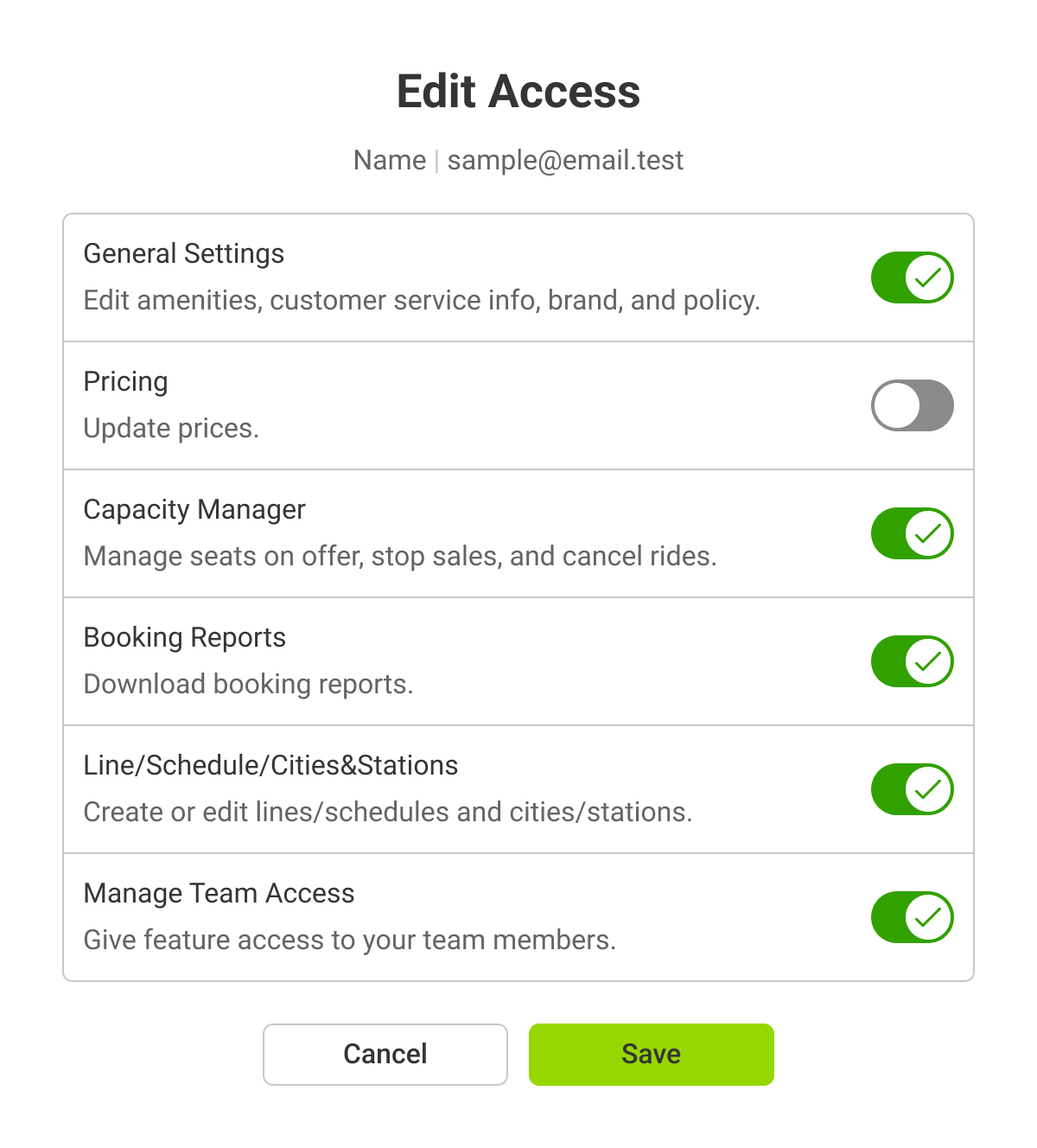
To change the access of other team members, you must have Manage Team Access permission assigned to you. If you do not have this permission, please contact your Flix Cooperation Manager.
Once saved, the updated access rights will take effect immediately.
You can manage and update your policies directly in Partner Settings.
If your partner account includes
multiple brands, you can define different policies per brand.
Tip: the more information you fill out here, the better your customers' experience will be, so we strongly recommend to always have the relevant details up to date. These details will be made available to customers through different ways of communication.
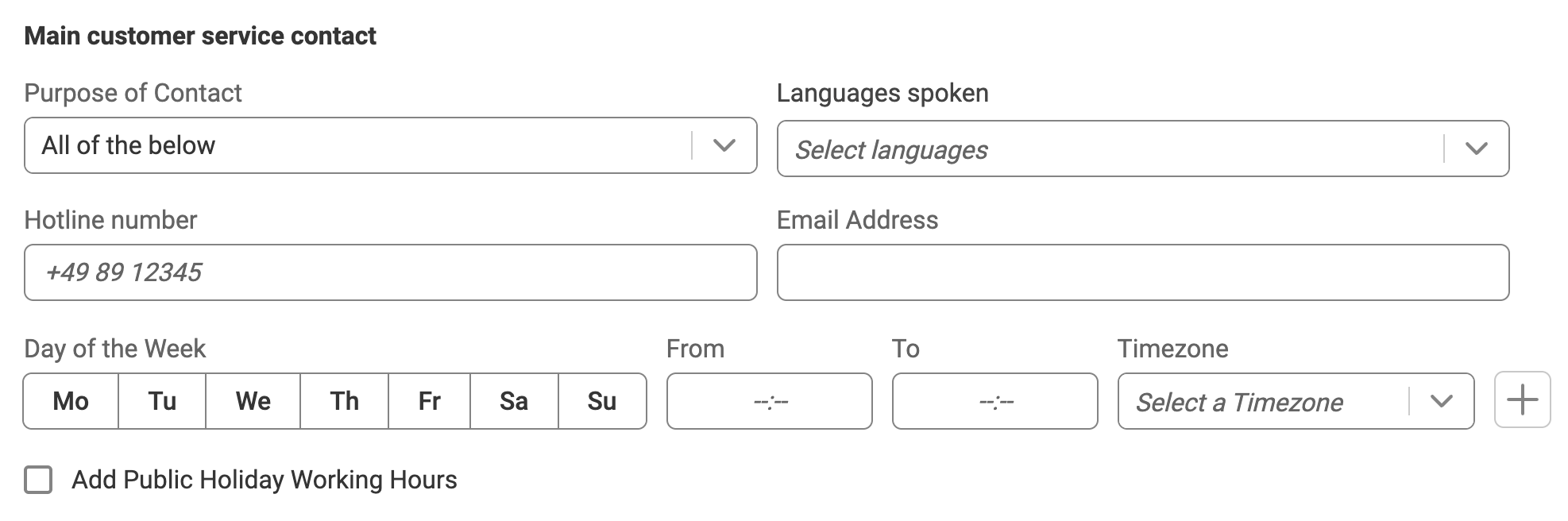
Providing accurate customer service details helps passengers contact the right support and reduces unnecessary requests to Customer Service.
For each Purpose of Contact, you can define:
The following settings apply across all policy sections:
⚠️ Important:
Setting up policies does NOT automatically enable ancillaries or allow the purchase
of additional luggage. Policies are used to inform passengers about travel conditions.
You can also configure policies for:
Once saved, updated policies will apply to the selected brand and be visible to passengers via the policy page.
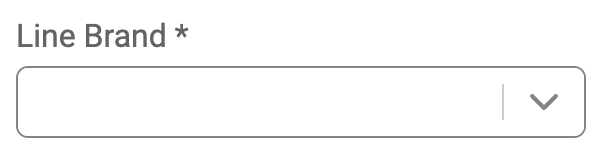
A brand represents the commercial identity under which you operate your bus services. This is the brand name that passengers will see when booking and traveling on your routes.
Flix Cooperation Manager handles all brand-related setup, including adding new brands to your account. Partners can view brand information in the Cooperation tool, but cannot edit the brand directly.
Need changes? Contact Flix Cooperation Manager to add new brands or update existing brand information.
When creating new lines:
To use this functionality, all of the following conditions must be met:
If you don't have permission, please ask your Flix Cooperation Manager.
All settings configured at the line level will apply to all schedules created within that line.
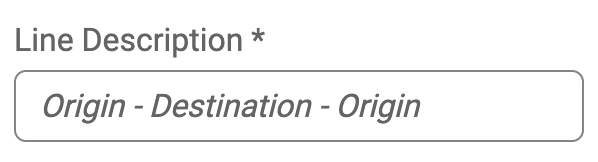
Line Description
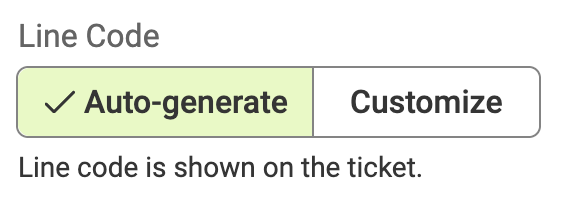
Line Code
Line Brand
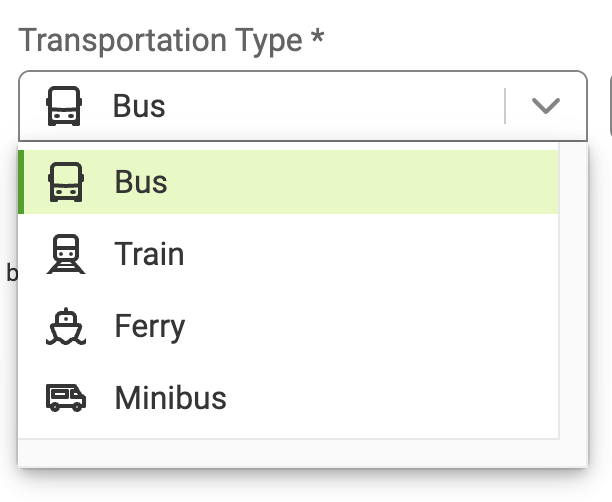
Transportation Type
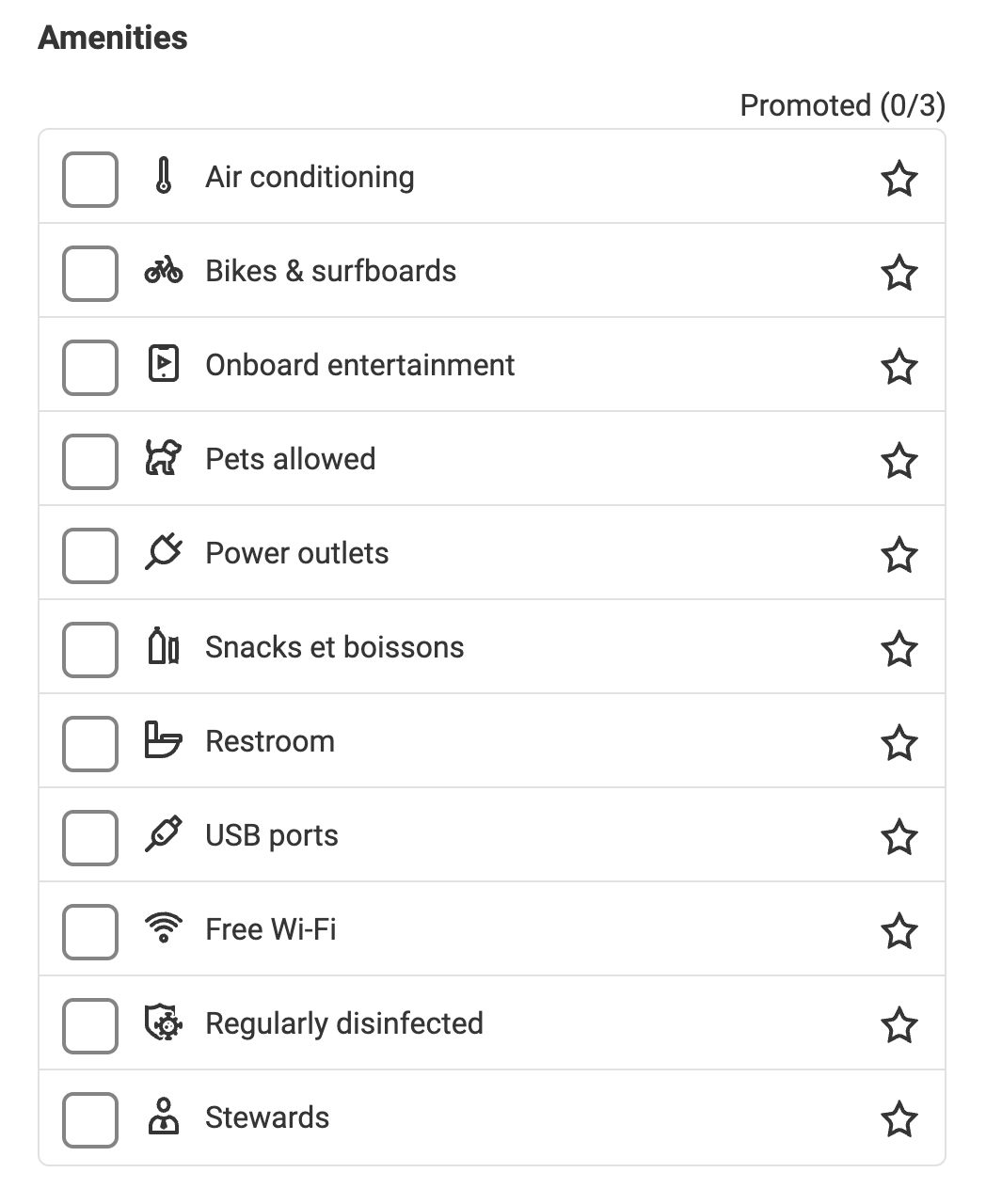
Amenities
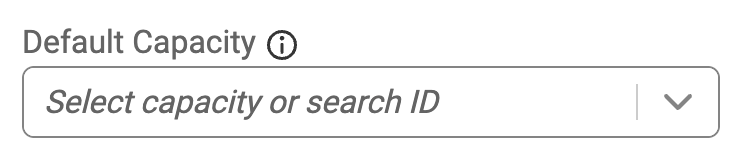
Capacity Settings
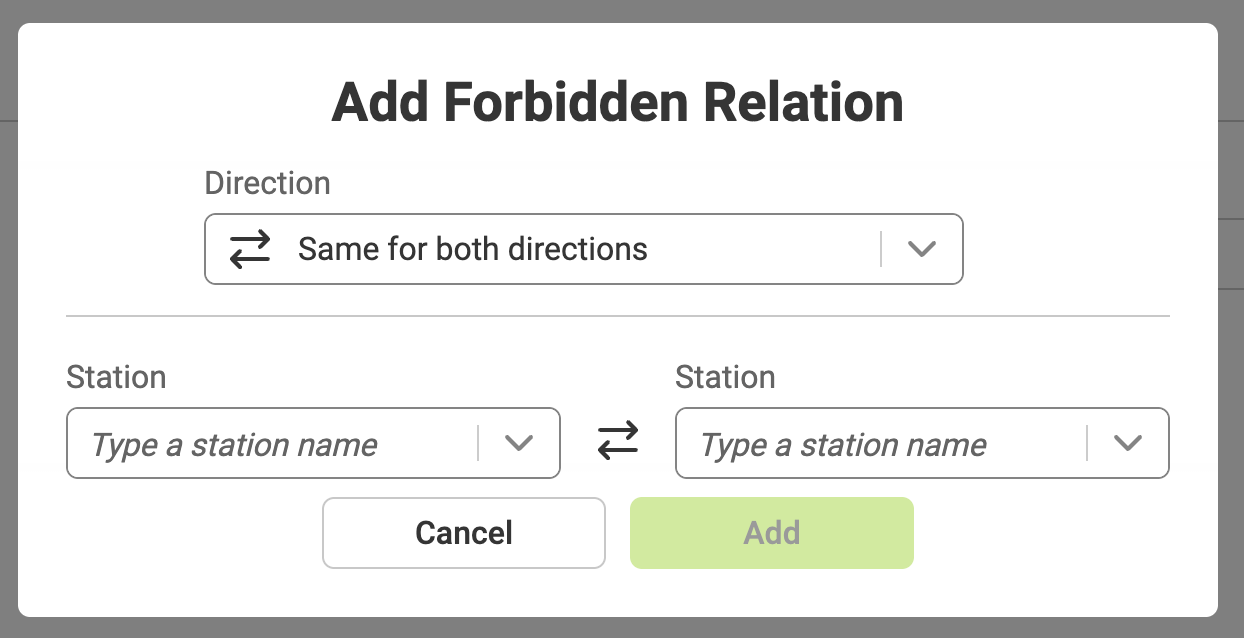
Forbidden Relations
Once all settings are configured, click 'Create Line' to create your new line.
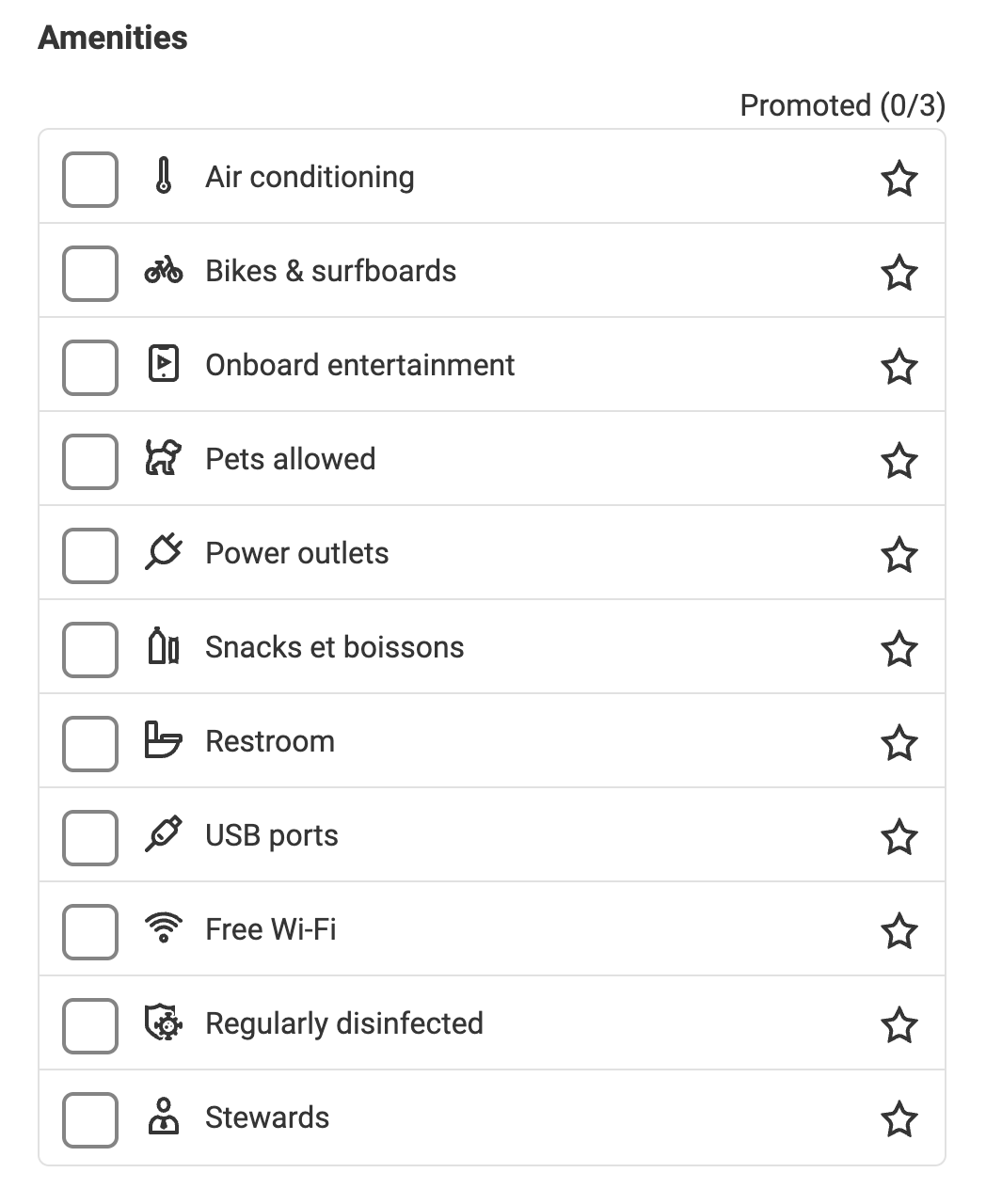
Amenities are the onboard services and features you offer to passengers, displayed as icons on each departure in the Flix booking platform. These icons help passengers understand what's available during their journey and can influence their booking decisions.
Primary display:
Additional amenities:
Competitive advantage:
Forbidden Relations are specific route segments between two stations that cannot be sold to passengers. These restrictions are implemented due to legal requirements or business decisions that prohibit certain station-to-station combinations from being available for booking.
Common scenarios include:
Setup and changes:
Modification requests:
Need help? Contact your Flix Cooperation Manager for modifications to existing forbidden relations.
Note: If you don’t see the Add Schedule button, it may mean that you don’t have access to it. Please check with your Flix Cooperation Manager for further details.
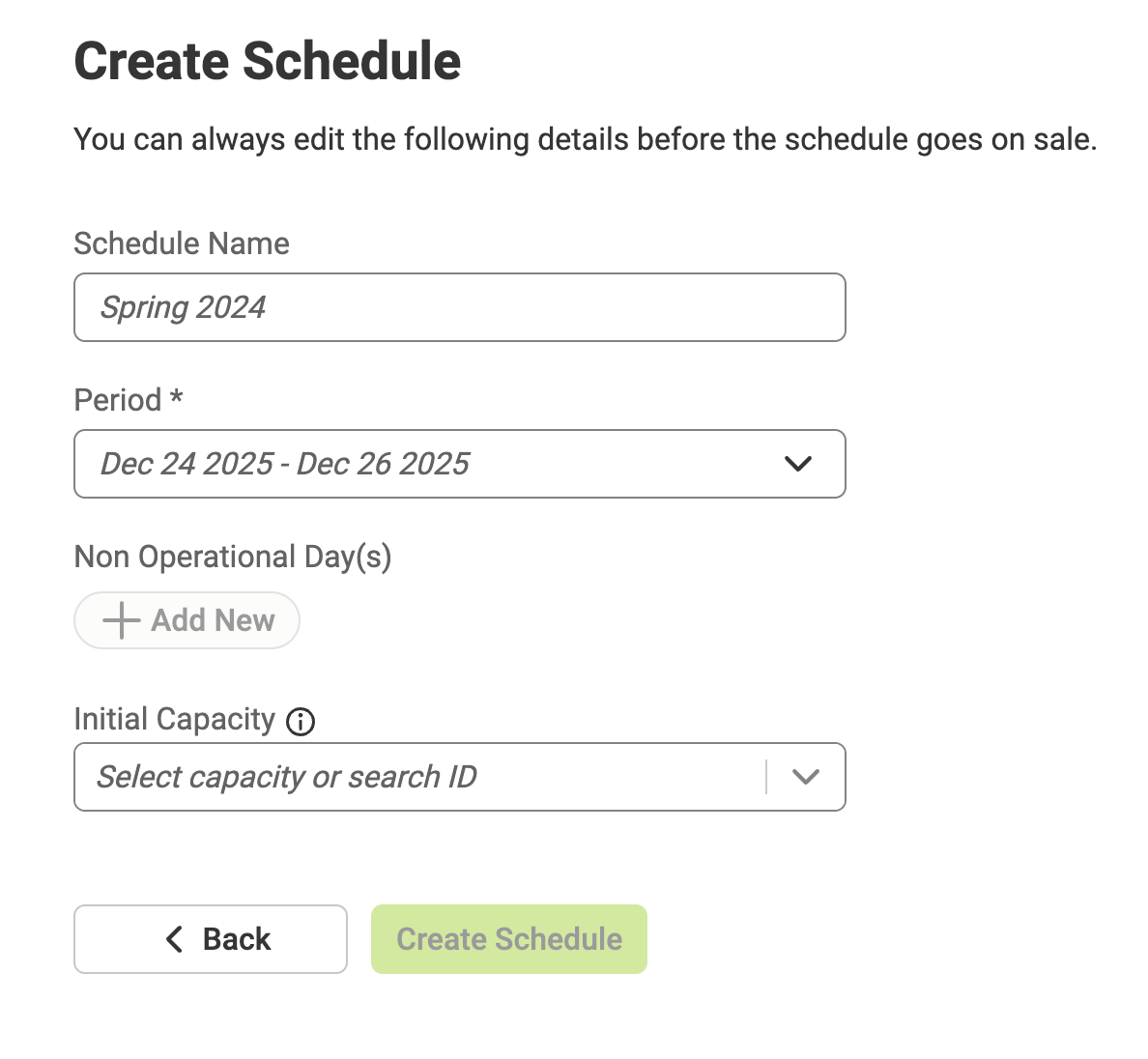
Enter a clear and identifiable schedule name. This will not be displayed anywhere, but it will help you navigate through these schedules in the future.
Best practices:
Helpful tips:
The period defines when the schedule starts and ends.
Pro tip: this is the most important setting of your schedule - make sure to double check what schedules you have on sale, and set the period of this new schedule accordingly to make sure you don’t create duplicate rides.
Once the Schedule Overview is completed, you can proceed to create the timetable.
⚠️ Important:
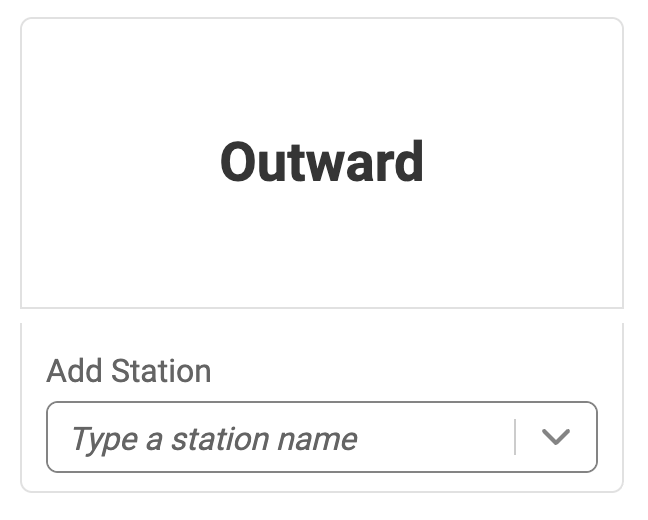
All required stations must already exist before creating the timetable. If
you struggle to find relevant stations, it may be missing in our system or unavailable - check with your Flix
Cooperation Manager for more details.
⚠️ Important:
You must create a separate schedule for the return if:
For the full guide on Prices, please read here.
You can use Copy Schedule to reuse an existing schedule and create a new one based on it.
⚠️ Important:
Copy Schedule is intended to create a new schedule, not to modify a live one.
To change an on-sale schedule, use Update Schedule instead.
⚠️ Important:
Copy Schedule should only be used to extend a line.
Using it to modify an
active schedule may result in duplicate rides being offered for sale.
If a schedule is already live and on sale, you should use the “Update Schedule” button to make changes.
Use “Update Schedule” when you need to:
This ensures that changes are applied correctly without creating duplicate rides.
⚠️ Important:
Do not use Copy Schedule to modify a live schedule.
Copy Schedule is intended
only to extend a schedule, and using it for live schedules may result in duplicate departures being offered
for sale.
You can update prices directly within a schedule using the Edit Prices button. Pricing can be changed even when a schedule is already on sale.
⚠️ Important:
If you change the currency for an existing schedule, the numeric price values will
not automatically adjust. Always double-check prices to avoid incorrect fares.
If prices already exist on another schedule under the same line:
👉 Don’t forget to click the checkmark to save the pricing period.
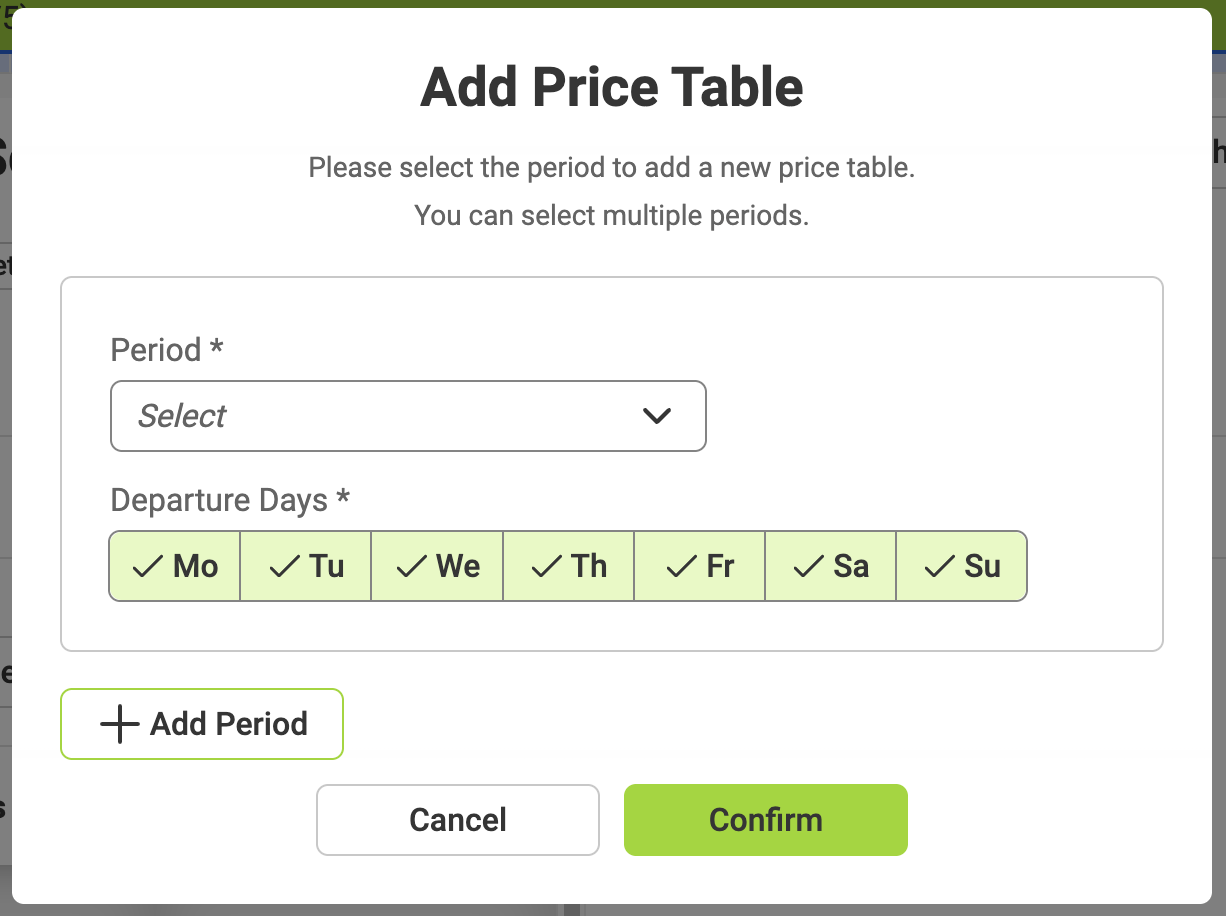
You can create multiple price tables within one schedule.
For each pricing period:
Non-operational days are optional days within a schedule period when rides should not operate.
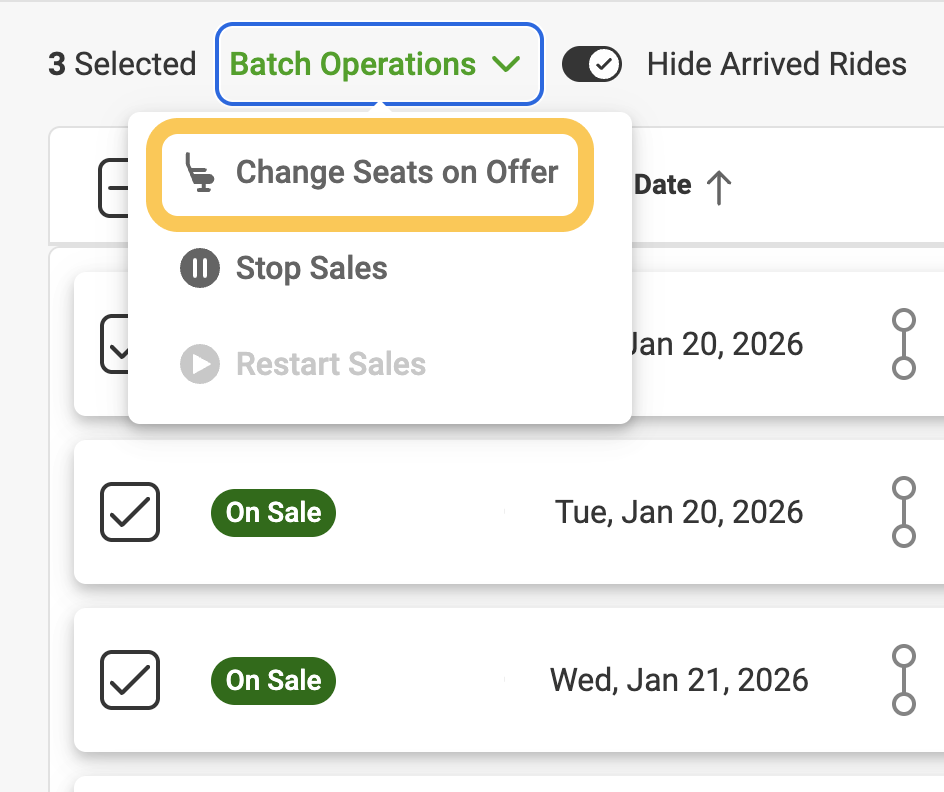
You can manage ride availability directly at the ride level, either for a single ride or for multiple rides at once using Batch Operations.
Use this option when you want to stop selling tickets for a ride that is still operating.
👉 This action is also available via Batch Operations (top-left corner).
If sales were previously stopped, you can restart them at any time.
If a ride will no longer operate and booked passengers must be informed, you need to cancel the ride.
⚠️ Important:
Use “Stop Sales” for temporary sales control, and “Cancel Ride” only when the ride will not operate.
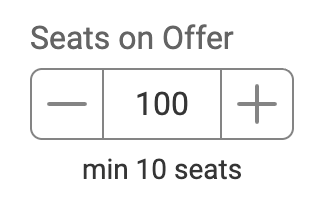
You can adjust the number of seats offered per ride or for multiple rides at once.
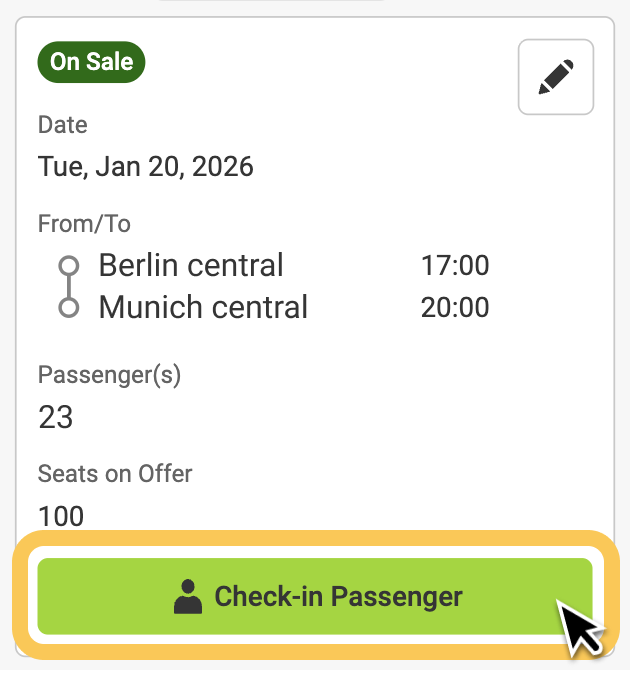
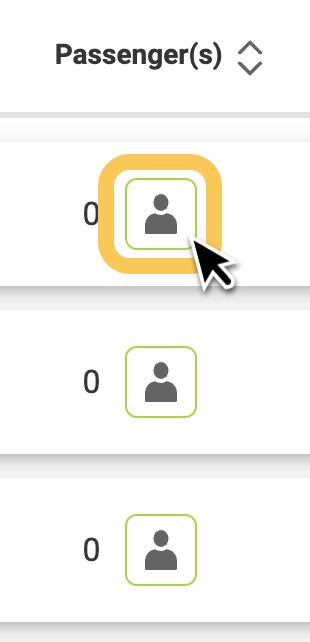
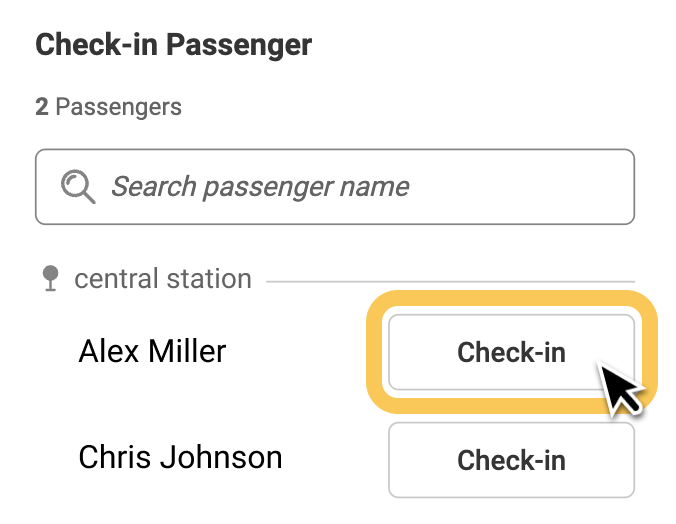
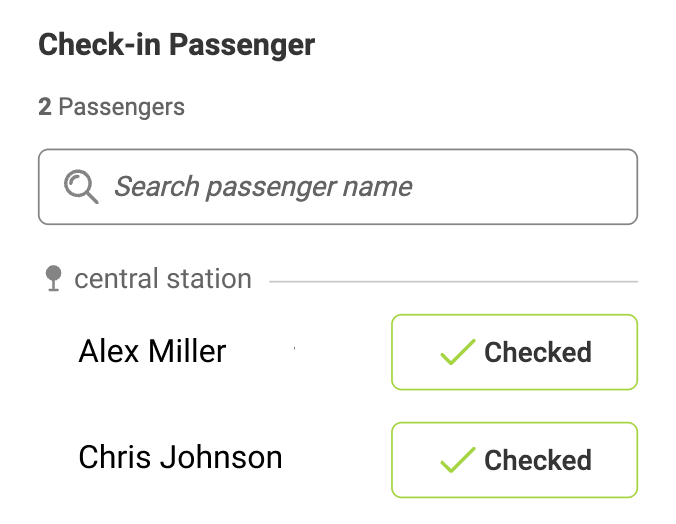
You can check in passengers directly from the Capacity Manager.
You can check in passengers in two ways:
⚠️ Important:
The Booking Report allows you to have instant access to the bookings made through the Flix website.
Information shown in Booking Reports is collected from passengers when they purchase the ticket, and we make sure to share with you everything that can be relevant to your internal operations.
There are several types of Booking Reports we are sharing, and here is an overview of the differences:
Excel Booking Reports usually contain more information than those via desktop & mobile. Notable difference is the second tab in Excel - History of Bookings.
The history of Bookings may not be relevant for every Partner, but whenever there is a cancellation or a rebooking that takes place, you will be able to see the sequence of what the original booking went through to map the relation between the bookings.
This is a global report tailored using internal data collected by Flix, and is designed to allow Partners to access more data about their performance in a transparent and independent way.
This report breaks down the details about monthly gross revenue performance on the following levels:
It also shows the number of monthly tickets sold on the same line or relation level.
These reports can help you get an overview of the distance covered by the routes you operate with Flix. This data can then be used for reporting purposes or as you fit it best for your operations.
The distance is available on a segment level on both kilometers and miles.
For USA interline partners, this is the distance that will be used on the interline pricing allocation.
The report can also be used to check station address and geo location. By clicking the station from/to fields, the station location is opened in google maps.
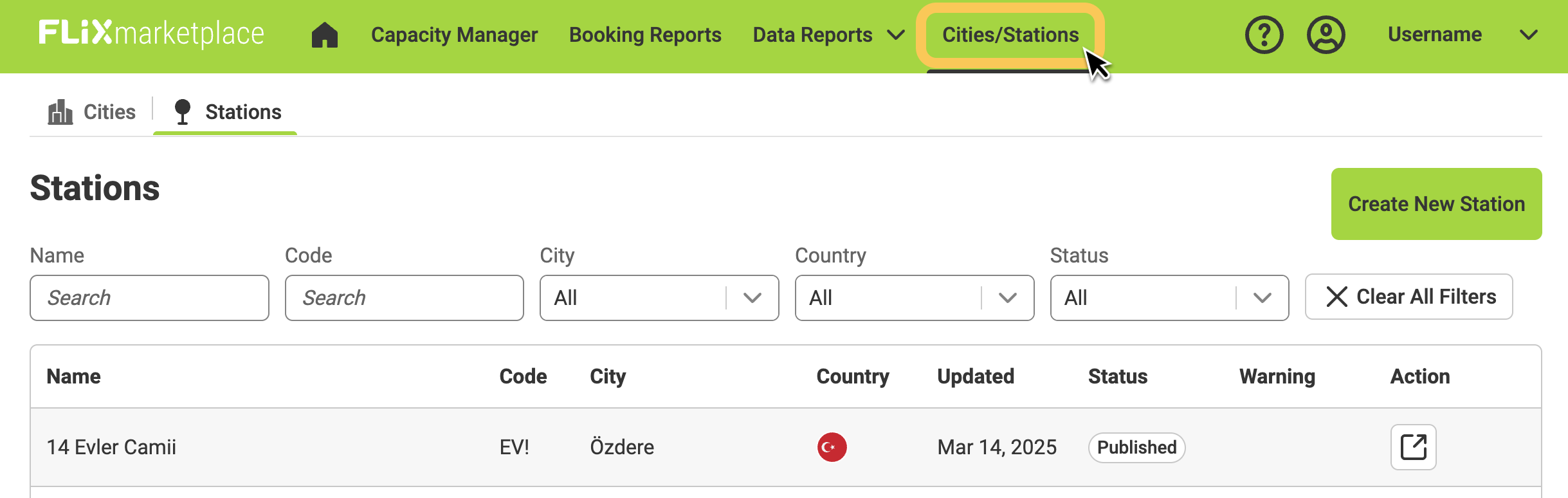
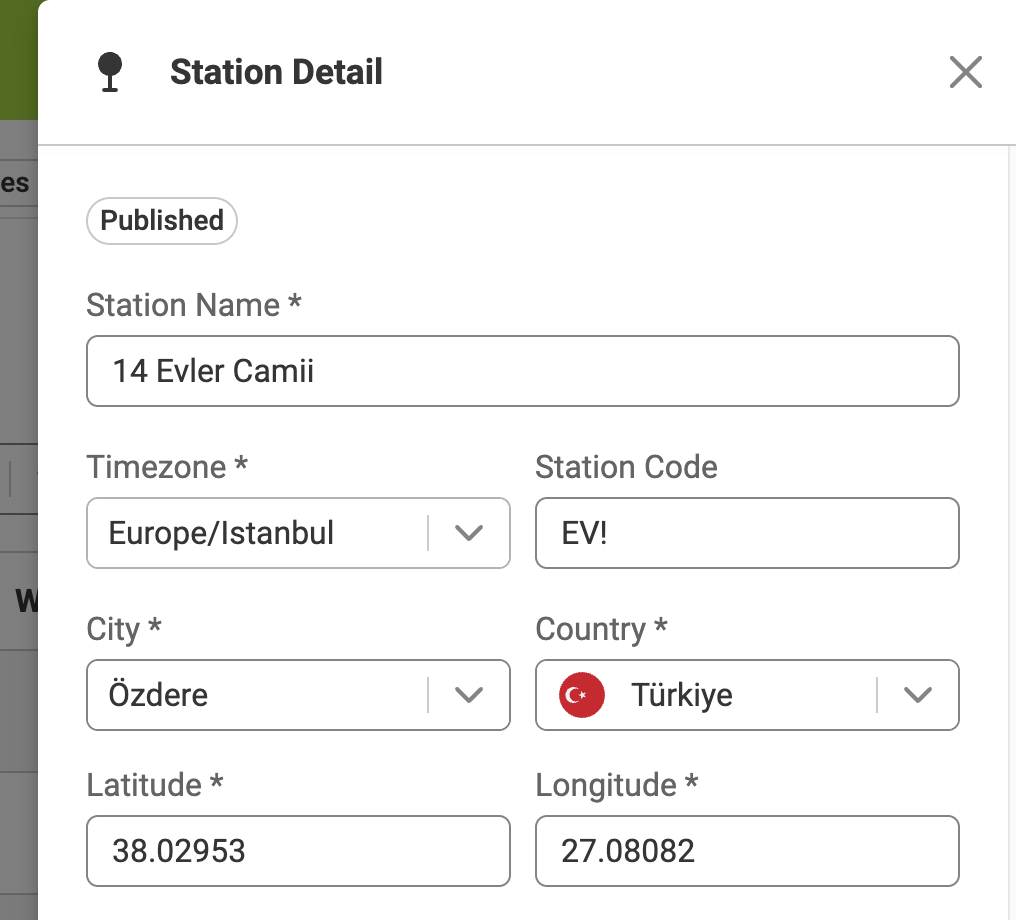
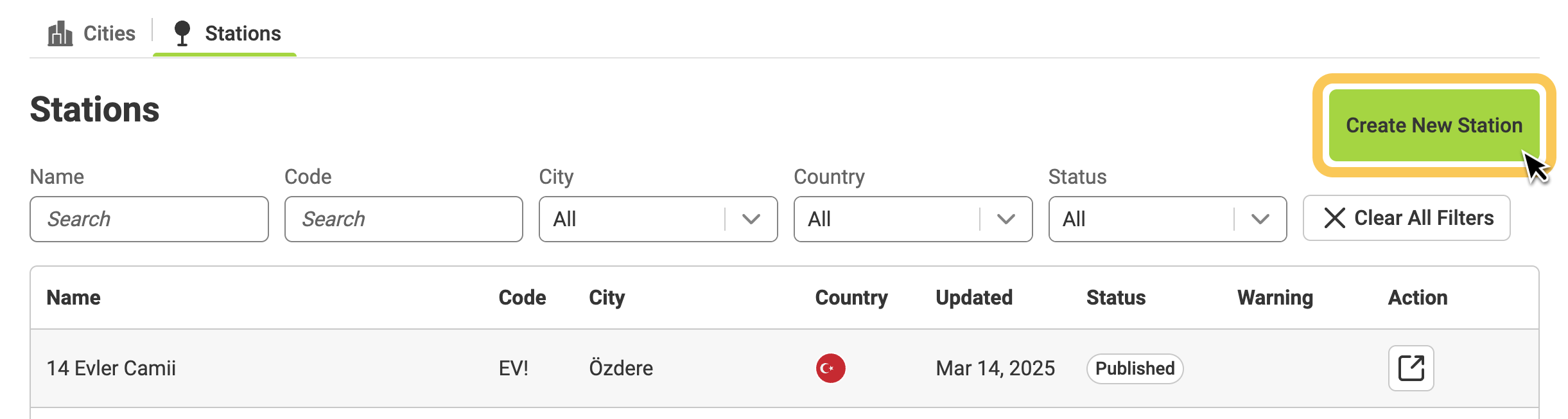
To use this functionality, all of the following conditions must be met:
If you don’t have permission, please ask your Flix cooperation manager.
⚠️ If your stop is very close to an existing Flix station, use the existing station.
👉 The request will be reviewed by the local Station Manager or Cooperation Manager
👉 You’ll receive the
approval result via email
Partners can request new stations only.
If the city itself does not exist in the Flix system, please contact your Flix cooperation manager to request the creation of the city.